


Script Builder
The Script Builder is where you design the call scripts agents follow on live calls. A script is a set of pages. Each page holds blocks: lines to read aloud, questions to ask, disclosures to confirm, secure payments and action buttons. The script adapts to each caller: it fills in their details, branches on their answers and shows state-specific copy where the law requires it.
Agents only ever run the published version. You can keep editing a draft without changing anything on live calls.
New to the builder? Read Quick start first, then come back to the reference sections as you need them.
Quick start
- Go to Campaigns → Call Scripts and click Create Script.
- Choose Script Builder → Start with Script Builder.
- Name the script in the header (it starts as Untitled script). If you manage several client accounts, pick the Client account the script belongs to.
- Click components in the library (or drag them) to add them to the page: for example a Say line, a Disclosure and a Radio question.
- Add more pages with Add page, and use Radio options to branch between them.
- Click Preview to walk through the script as an agent would.
- Click Save draft, fix anything listed under Checks, then click Publish.
- Open your voice campaign and choose the script under Agent script → Built-in call script.
Where to find it
| What | Where |
|---|---|
| Script list | Campaigns → Call Scripts (/campaigns/call-scripts) |
| A client’s scripts | Client Management → client → Call Scripts. Create Script here locks the new script to that client. |
| New script | Create Script → Script Builder card → Start with Script Builder |
| Edit a script | Click a row, or ⋯ → Edit Script |
The list has a search box, a status filter (All / Drafts / Published / Archived) and these columns: Script Name, Format, Status, Last edited, Created By, Actions. Builder scripts carry a Script Builder badge. A published script with saved but unpublished edits also shows a Draft changes chip.
The row menu offers Edit Script (or Continue editing for a draft), Clone Script and Delete Script. People who can’t edit see View Script instead.
Older scripts made with the Step-by-step outline builder open in that builder. If you open one in the Script Builder, it offers an Open step builder button.
Who can do what
| Action | Who can do it |
|---|---|
| Create and edit scripts | Manage call scripts or Author call scripts permission, or Super Admin |
| Publish and restore versions | Manage call scripts or Publish call scripts, or Super Admin |
| See the History tab | Manage, Review or Publish call scripts, or Super Admin |
| Open Responses | Manage call scripts, View call script reports, Generate client reports or View live reports, or Super Admin |
| Run a script on a call | Agents. They only ever see the published version, never a draft. |
The built-in Manager role has all of the script permissions. Anyone who can open a script but not edit it sees a View only chip, and the component library is hidden.
The builder at a glance
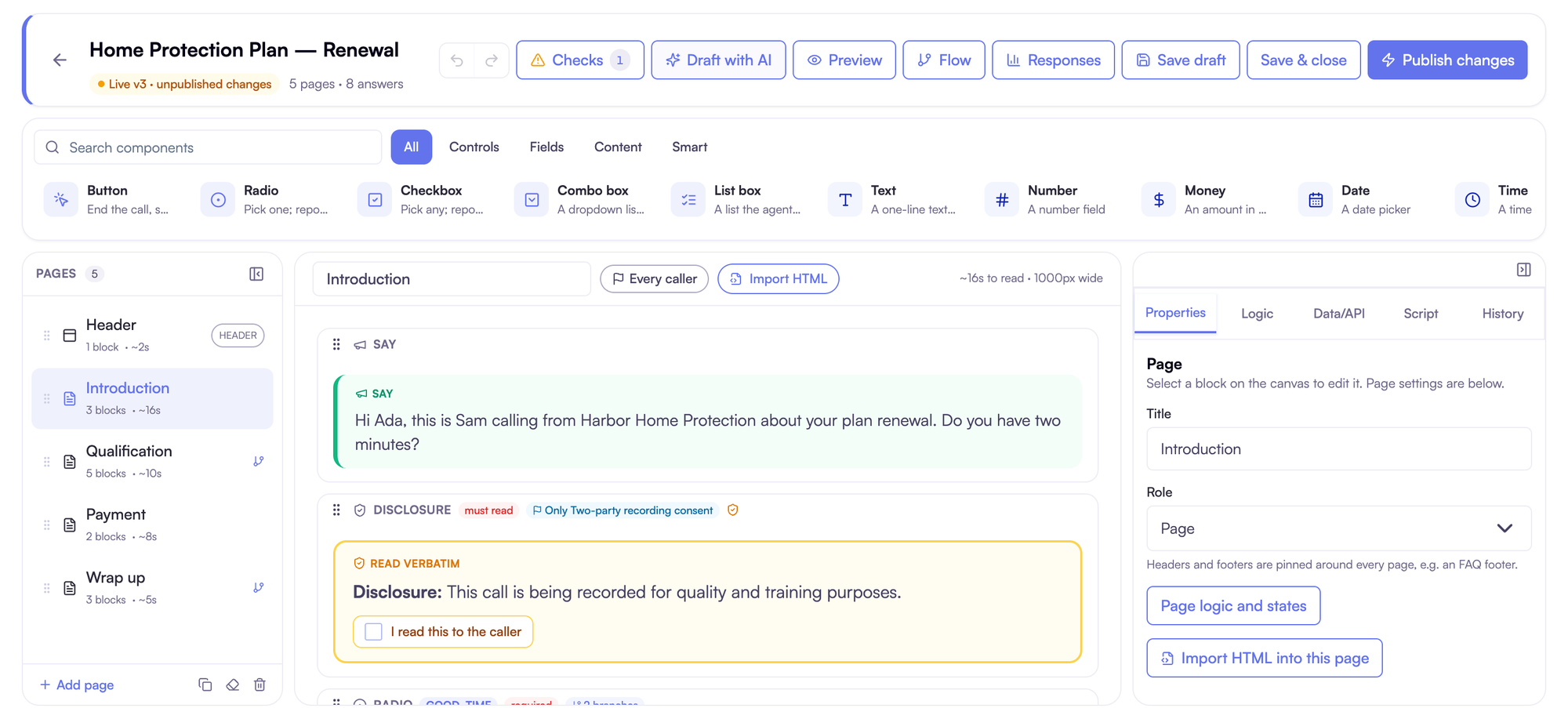
The builder has five areas:
- Header and toolbar (top). From left to right:
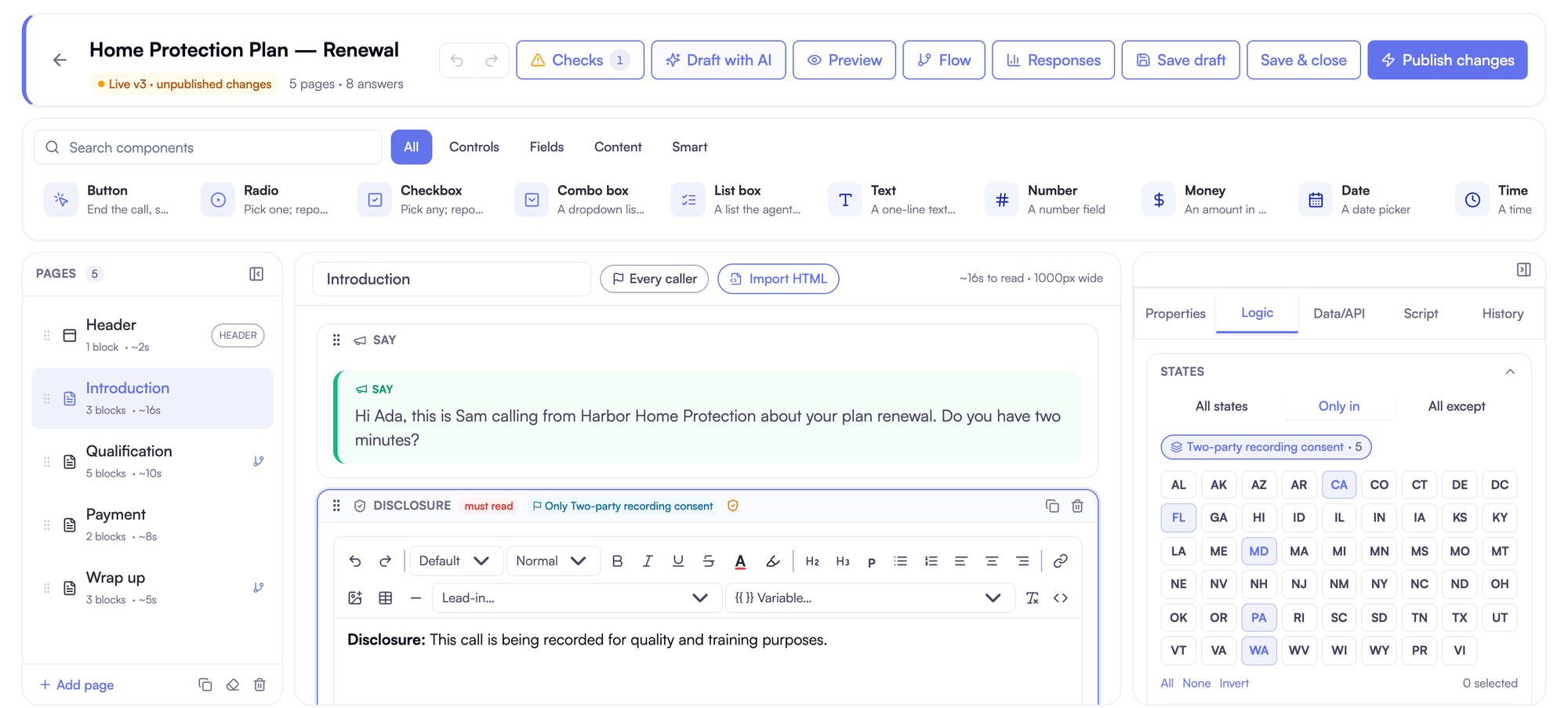
- Back to scripts, the script name, and a status badge: Draft, or Live v3 (plus · unpublished changes when the draft differs from the live version).
- A running count of pages and answers.
- Undo / Redo, Checks, Draft with AI, Preview, Flow, Responses, Save draft, Save & close and Publish (Publish changes once the script is live).
- Component library (below the header). Every block you can add, grouped into Controls, Fields, Content and Smart, with a Search components box.
- Pages panel (left). The script’s pages in order.
- Canvas (center). The selected page, laid out exactly as agents will see it.
- Inspector (right). Settings for the selected block, or for the page when nothing is selected. It has five tabs: Properties, Logic, Data/API, Script and History.
You can collapse the Pages panel and the inspector with the icons in their corners to give the canvas more room.

Pages
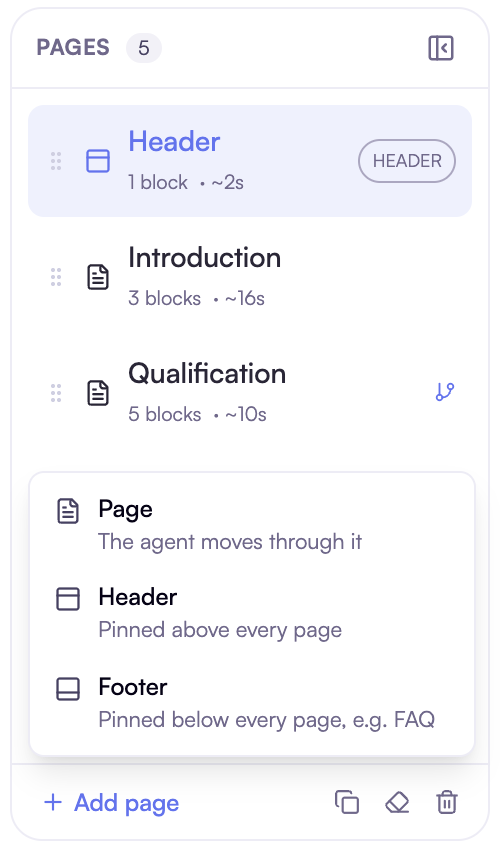
Add page creates one of three kinds of page:
| Kind | Behavior |
|---|---|
| Page | A step the agent moves through with Next and Back. |
| Header | Pinned above every page. Good for a contact card or a reminder. |
| Footer | Pinned below every page. Good for an FAQ or rebuttals. |
Headers and footers are never part of Next/Back, the Flow view, or branch targets.
Each row in the Pages panel shows:
- the page title
- its block count and an estimated reading time
- a flag icon if the page only applies in some states
- a branch icon if another page jumps to it
At the bottom of the panel are Copy page, Clean page (remove every block) and Delete page. Deleting shows an Undo toast. You can’t delete the last remaining page.
- Reorder pages by dragging their rows.
- Move a block to another page by dragging it from the canvas onto that page’s row. It’s added to the end of that page. You can also drop a library component onto a page row.
- Rename a page with the title field at the top of the canvas, or with Title in the inspector. Every page needs a title before you can publish.
- Change a page’s kind with Role in the inspector.
Importing HTML
If you’re moving a script from another system, click Import HTML at the top of the canvas (or Import HTML into this page in the inspector).
- Paste the HTML.
- Choose Replace page content or Add below existing blocks.
- Click Preview conversion to see a conversion report and a live preview.
- Apply the result.
Tokens such as {{Label.X}} are converted to lead fields. Unsafe content, such as scripts and embedded objects, is removed. Anything that needs attention shows up as a warning in Checks.
Blocks
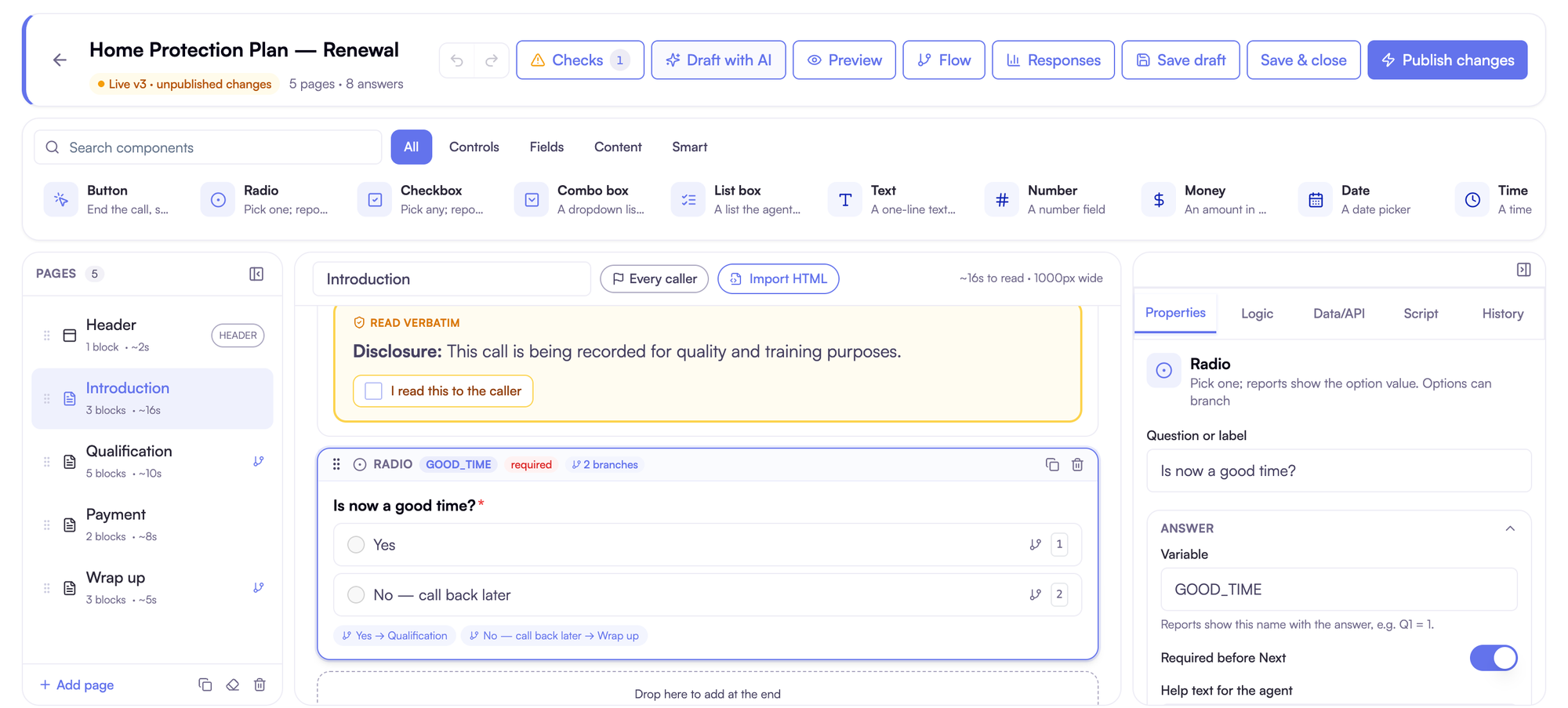
Click a component to add it below the selected block, or at the end of the page. Drag a component to drop it exactly where you want it. Hover a block on the canvas to reveal its drag handle (Drag to move), Duplicate (⌘D) and Delete (⌫).
A block’s header shows its type and some chips:
- Variable name, for example
GOOD_TIME - required or must read
- the block’s state rule
- conditional, if it has show-when conditions
- the number of branches
Controls
| Block | What it does |
|---|---|
| Button | Performs an action when pressed: end the call, set the disposition, mark Do Not Call, hold or resume the caller, go to a page, open a link, or run an approved data action. See Buttons and actions. |
| Radio | Pick one option. Reports show the option’s value. Options can branch to another page. Agents can answer with the 1–9 keys. |
| Checkbox | Pick any number of options. |
| Combo box | A dropdown list of options. Options can branch. |
| List box | A list the agent can pick several items from. |
Editing options. Each option has a Label (what the agent sees) and a Value (what reports store). Use Add option, or Bulk add to paste one option per line (label or label=value). On Radio and Combo box blocks, each option has a branch selector: Stay on this page or Go to “page”.
Fields
| Block | Notes |
|---|---|
| Text, Number, Money, Date, Time, Email, Phone | One-line inputs of each type. You can change the type later with Type. Money shows a $ and two decimals. Email is checked for a valid address. |
| Protected | A masked field with a Show/Hide toggle. Reports only ever show the last 4 characters. |
| Textarea | Free-text notes. |
Never collect card numbers in a field. Card-like numbers typed into any script field are rejected, both on screen and on the server. Use the Payment block instead.
Content
| Block | What it does |
|---|---|
| Text | Formatted script copy: headings, lists, tables, images, links and tokens. |
| Say | Lines the agent reads aloud. Shown with a green Say bar. |
| Disclosure | Compliance copy that must be read word for word. Shown as an amber Read verbatim box with an I read this to the caller checkbox. |
| Label | A short heading or instruction. |
| Link | Opens a page in a new tab. Tokens work in the URL, for example {{lead.ID}}. |
| Image | A picture the agent can refer to: PNG, JPEG, GIF or WebP, up to 5 MB. Set the caption (alt text) and width (20–100%). |
| Iframe | Embeds a secure (https) web page. The site’s host name must first be added under Approved embeds. |
| Divider | A horizontal line. |
Text styles. Text and Label blocks have a Style setting:
| Style | Use it for | How agents see it |
|---|---|---|
| Plain | Regular script copy | Normal text |
| Say | Lines read aloud | Styled as speech |
| Agent note | Instructions that are not read aloud | Dashed box labeled Agent note · do not read aloud |
| Disclosure | Compliance copy read verbatim | Amber Read verbatim box |
Must-read copy. Turn on Agent must confirm they read it on any text block. The agent then can’t press Next until they tick I read this to the caller. The time they ticked it is saved as proof. New Disclosure blocks have this turned on.
Editing text
Select a Text, Say or Disclosure block to edit it directly on the canvas. The toolbar offers:
- Formatting: font, size, bold, italic, underline, strikethrough, text color and highlight
- Structure: headings, bulleted and numbered lists, alignment, tables (up to 8×8) and horizontal lines
- Links:
https://,http://,mailto:andtel:only - Images: upload with the toolbar button, paste, or drop a file at the cursor. Click an image to resize it (25–100%), align it, set its alt text, replace it or remove it.
- Lead-in… inserts a colored label: Probe:, Rebuttal:, Say:, Note: or Transition:
- {{ }} Variable… inserts a token
- Edit HTML source, to work on the raw HTML
Images are stored with the script’s client account, so choose the client account before uploading. When you save, the HTML is cleaned and anything unsafe is removed.
Smart blocks
| Block | What it does |
|---|---|
| Address | Street, apartment, city, state and ZIP. Prefill from the lead’s address (on by default) starts it from the lead record. |
| States | The agent confirms the caller’s state. With This becomes the caller’s state turned on (the default), the pick drives every state rule in the script. See State-specific scripting. |
| Payment | Secure card capture on the caller’s phone keypad. See Payment block. |
| Contact | Shows what’s on file for the caller (name, phone, email, or any contact or lead field), with a tick box per field for the agent to confirm. Choose the rows under Fields shown. |
Answers and variables
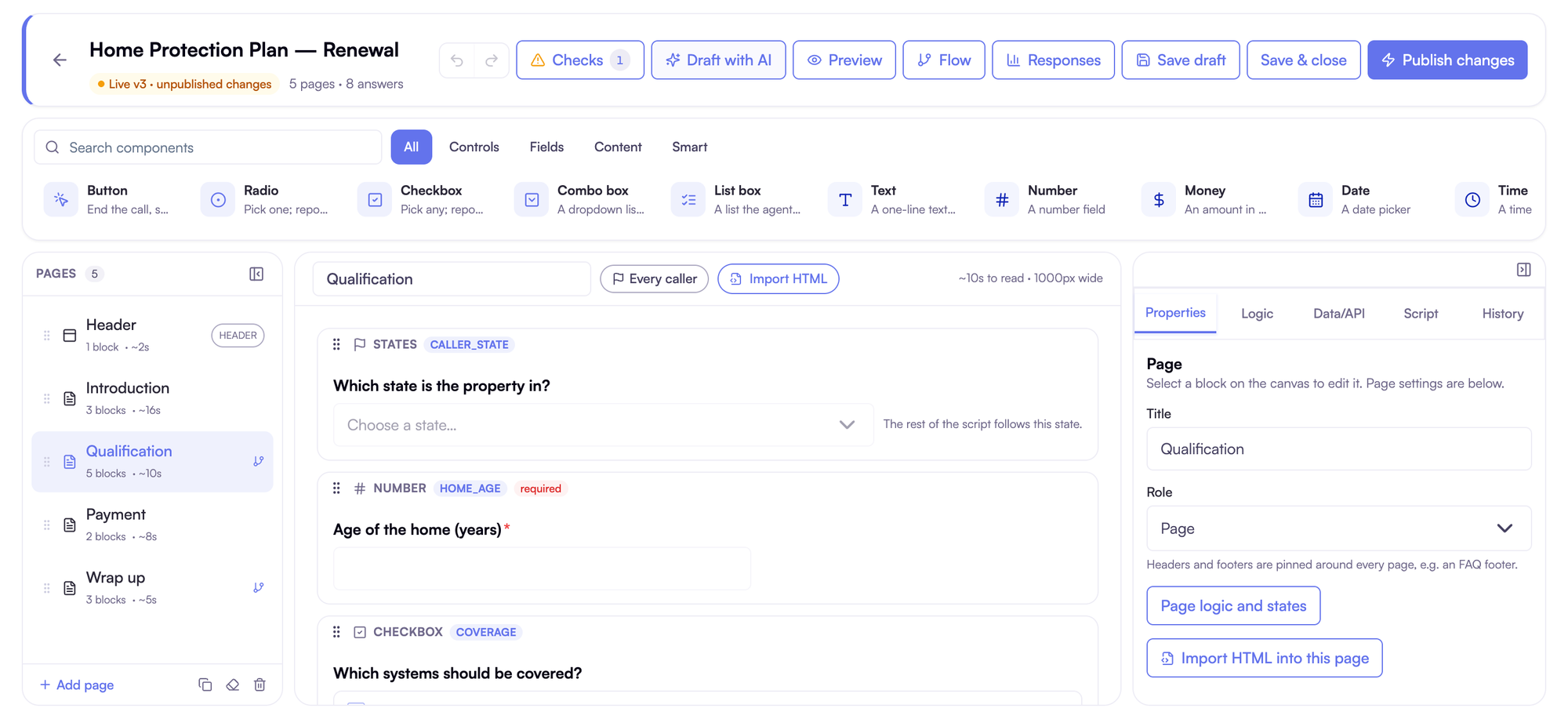
Every block that collects something gets a Variable, the name reports use for the answer. Variables are numbered automatically from the block’s type: Q1, Q2 for questions, AMOUNT1 for money, NOTES1 for textareas, and so on.
Rename a variable to something meaningful, such as GOOD_TIME or PREMIUM. Only letters, numbers and _ are allowed, and each variable must be unique within the script.
The Answer section of a block also has:
- Required before Next: the agent can’t move on until this block is answered.
- Help text for the agent: a hint shown under the question.
Duplicating a block or page adds
_copyto its variable names. Rename them before you publish so your reports stay readable.
Branching
There are three ways to send an agent to a different page:
- Option branches. On a Radio or Combo box option, choose Go to “page”. The agent jumps there a moment after picking the option.
- Go-to buttons. A Button set to Go to a page.
- Data action results. A data-action button’s On success and On error pages.
Only regular pages can be branch targets; headers and footers can’t. Checkbox and List box options can’t branch.
Click Flow in the toolbar to see the whole path in one place: every page in order, with its required steps and each branch (Yes → Qualification). A loop icon marks a branch that goes back to the same page or an earlier one.
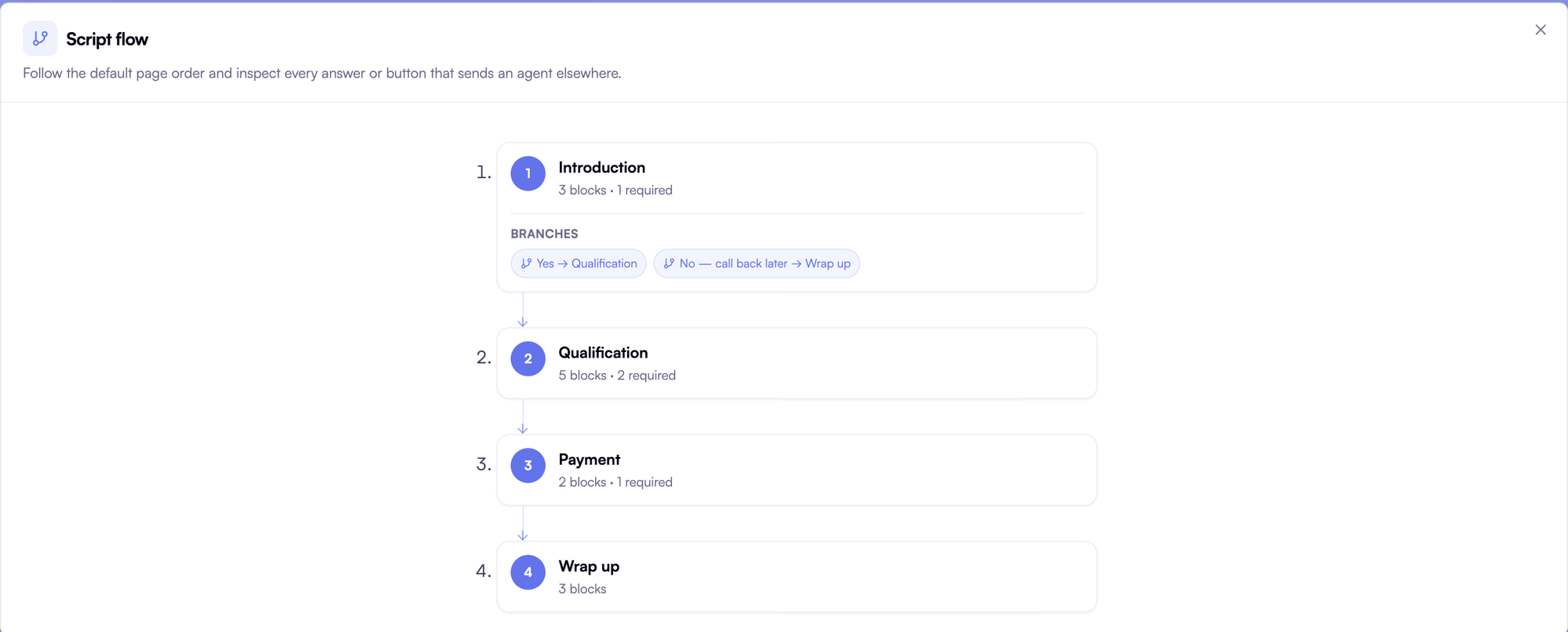
> Back goes to the previous page in the page order, not to the page the agent came from. After a branch jump, Back can land on a page the agent never visited. Order your pages so this still makes sense, or add explicit “Go to” buttons.
Logic: showing blocks and pages conditionally
Select a block (or click an empty part of the page to select the page itself) and open the Logic tab. A block or page can have a state rule, show-when conditions, or both.
Hidden blocks don’t appear for the agent. Hidden pages are skipped by Next and Back.
Show when
Add conditions based on:
- Answer: an answer given earlier in the script
- Lead field: a field on the campaign record
- Contact: a field on the contact
- Caller state
The operators are equals, does not equal, is one of, is none of, contains, has a value and is empty. For is one of and is none of, separate the values with commas, for example PA, NY. Comparisons ignore upper/lower case and extra spaces.
With two or more conditions, choose whether All must match or Any can match.
A block can only depend on answers collected before it. Checks flags a condition that reads an answer from the same block or a later one.
State-specific scripting
Many compliance requirements depend on where the caller is. The builder handles this in four parts:
- Caller’s state: how the script works out which state the caller is in.
- State rules: show a block or page only in some states.
- State groups: named sets of states you can reuse.
- State versions: different wording of the same text for some states.
How the caller’s state is decided
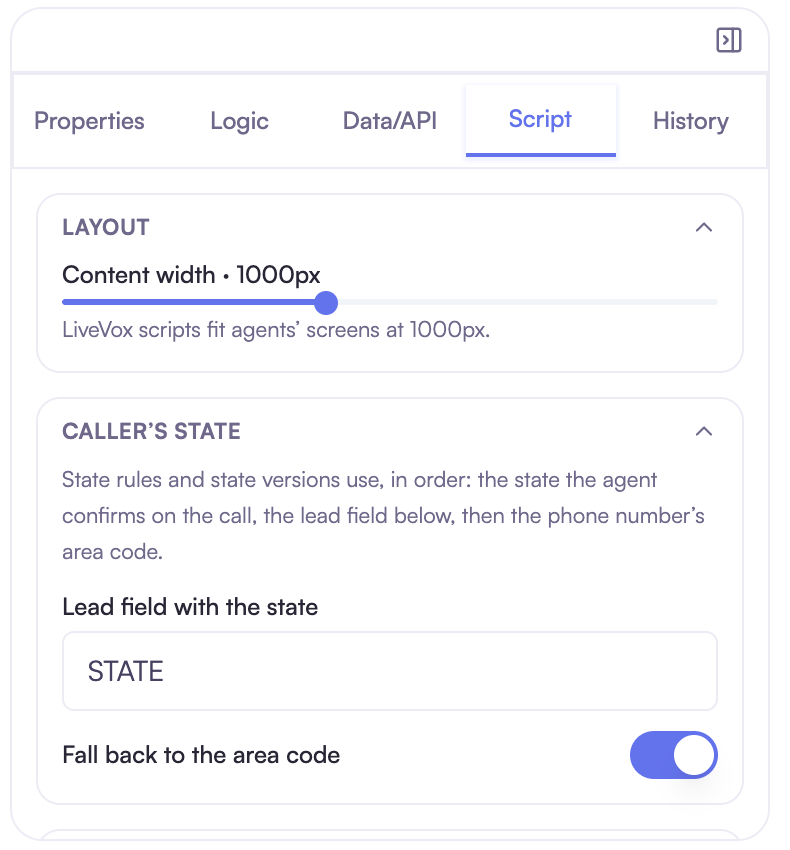
Set this up in the Script tab under Caller’s state. The script uses the first of these it finds:
- The state the agent confirmed on the call. This comes from a States block, or from the state banner at the top of the script.
- The lead field named in Lead field with the state (default
STATE). The script looks in the lead first, then the contact. Two-letter codes and full names both work (PA,Pennsylvania). - The phone number’s area code, if Fall back to the area code is turned on.
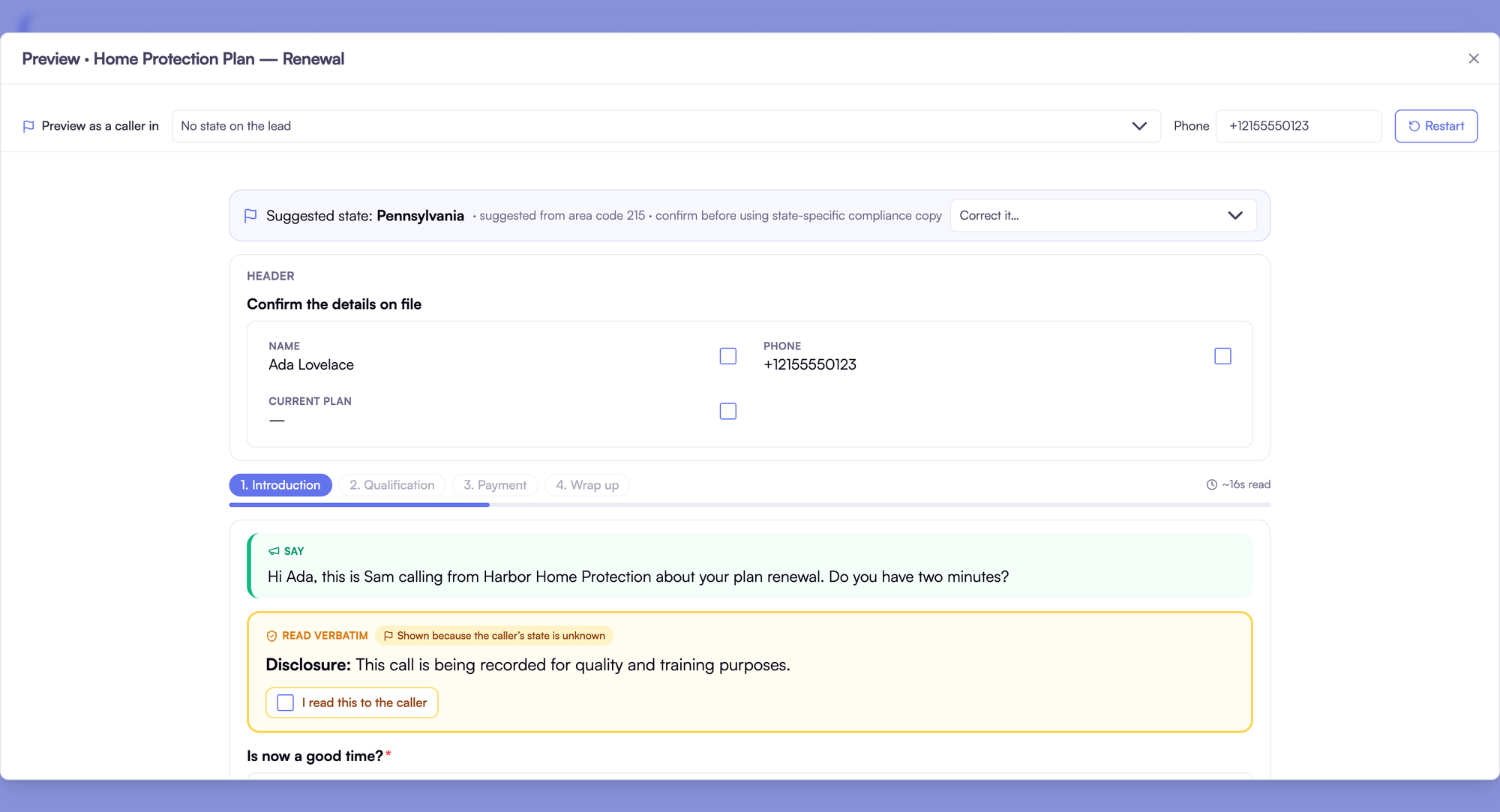
An area-code match is only a suggestion. The agent sees Suggested state: Pennsylvania · suggested from area code 215 · confirm before using state-specific compliance copy. Until the agent confirms it, the script treats the state as unknown.
State rules
In Logic → States, choose:
- All states: no rule.
- Only in: show only to callers in the selected states.
- All except: show to everyone except callers in the selected states.
Then pick states from the grid (All, None and Invert help), or pick one or more state groups. Anything that doesn’t match is hidden automatically; you don’t need a matching “hide” rule. The grid includes DC, PR and VI.
> If the caller’s state is unknown, state-specific blocks and pages are shown, not hidden. They’re flagged Shown because the caller’s state is unknown. A disclosure is never skipped just because the state is missing.
A state rule that doesn’t match hides the block or page whatever its show-when conditions say.
State groups
In the Script tab under State groups, click New state group, give it a name (for example Recording consent states) and pick its states. Use the group in any rule. When you change the group, every rule that uses it follows.
The builder doesn’t come with built-in legal state lists. Your compliance team decides which states belong in each group.
Deleting a group that rules still use causes Checks errors, which block publishing. Remove the group from those rules first.
State versions of text
Select a text block and click Different wording for some states. Each version has its own copy and its own states. Agents in any other state see the Default · every other state copy.
If a caller matches more than one version, the first matching version wins. Agents see a badge such as PA version on the copy they’re reading.
Tokens: filling in caller details
Tokens are placeholders the script replaces with real data on the call. They work in text, labels, help text, option labels, link text and URLs, iframe URLs, button URLs and image captions.
| Token | Filled with |
|---|---|
{{contact.firstName}}, {{contact.lastName}}, {{contact.fullName}}, {{contact.phone}} |
The contact’s details |
{{lead.FIELD}} |
Any field on the campaign record, for example {{lead.plan}} |
{{answer.KEY}} |
An answer given earlier in the script, for example {{answer.PREMIUM}} |
{{agent.firstName}}, {{agent.fullName}} |
The agent on the call |
{{caller.state}} |
The caller’s state |
A token with no value is replaced with nothing, so the sentence still reads cleanly.
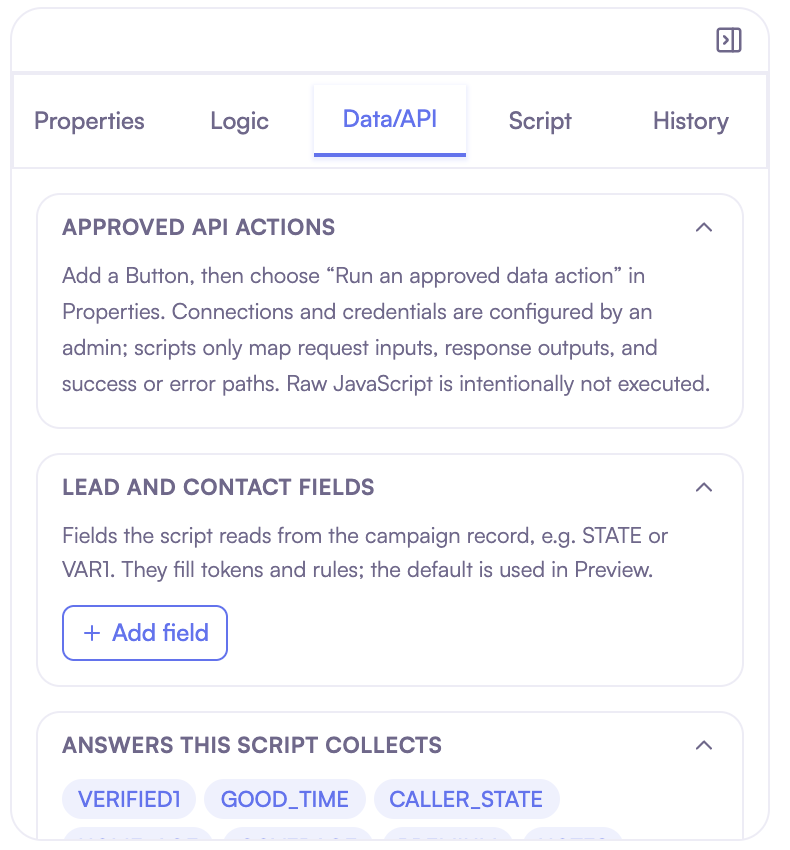
The Data/API tab lists every answer the script collects and the built-in tokens. Click a chip to copy its token.
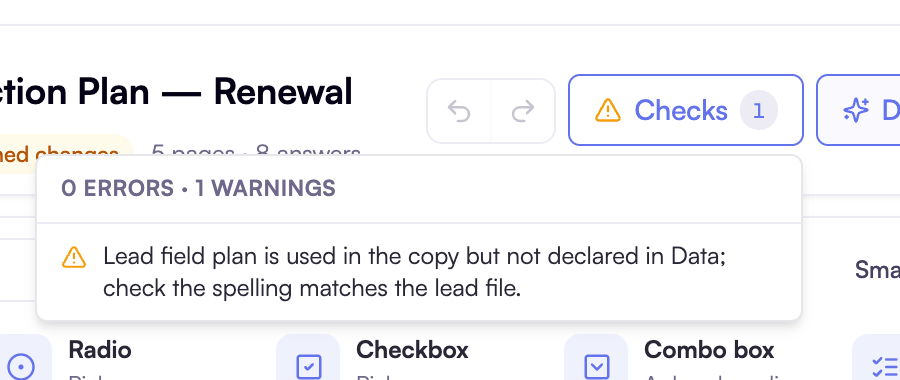
Under Lead and contact fields, declare the lead fields your copy uses, with a Default / preview value. That value is used in Preview, and as a fallback on a call when the field is empty. Checks warns about lead fields used in the copy but not declared here. That warning usually means a typo.
Buttons and actions
A Button’s When pressed setting decides what it does:
| Action | What happens on a live call |
|---|---|
| End the call | Saves the answers as complete and hangs up. Shown in red. |
| Set the disposition | Pre-fills the wrap-up with the chosen Disposition, Result and Sub-result. With Also end the call turned on, it hangs up too. |
| Mark Do Not Call | Ticks Add to Do Not Call on the wrap-up. The number is suppressed when the agent submits the wrap-up. |
| Hold / resume the caller | Toggles hold. |
| Go to a page | Jumps to the chosen page. |
| Open a link | Opens the URL (tokens are filled in), in a new tab by default. Use Test link to check it. |
| Run an approved data action | Calls an integration an admin has already set up. Map Request inputs from answers or fixed values, and map Response outputs back into answers. Choose On success and On error pages and a Timeout (1–15 seconds). |
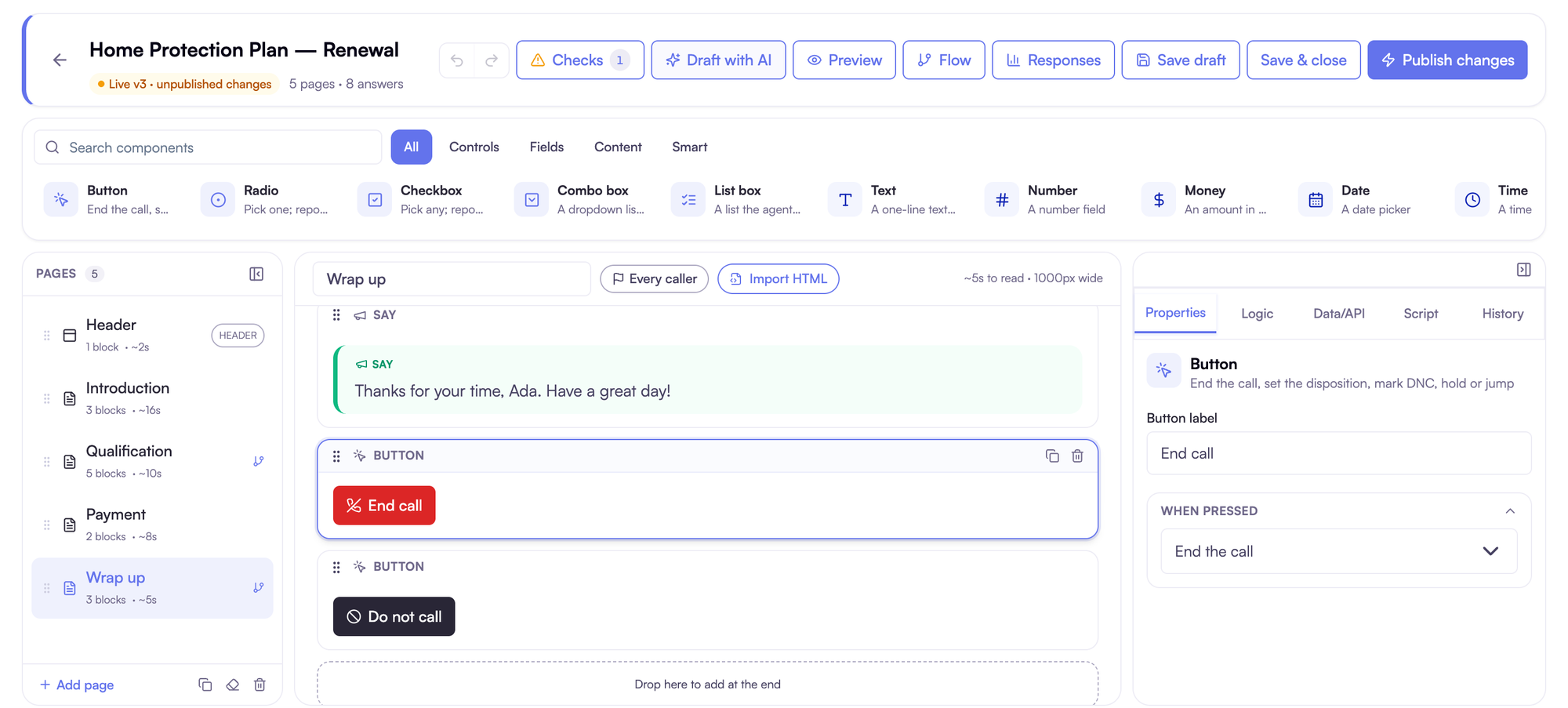
Data actions only run on a real call. In Preview and in read-only views, buttons only describe what they would do, for example “On a live call this hangs up.”
Payment block
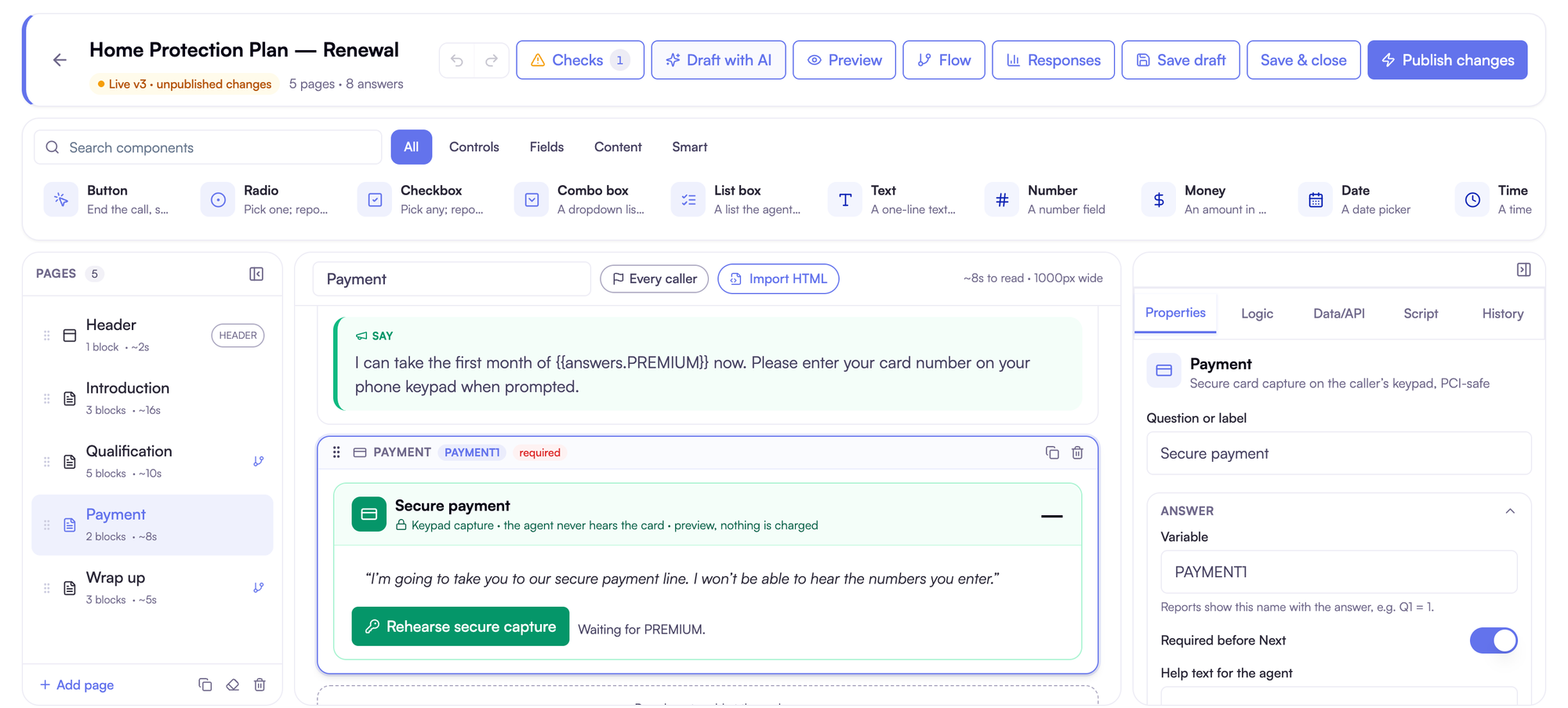
The Payment block takes card payments without the agent ever seeing or hearing the card. The caller types the card on their phone keypad. Twilio hides the key tones from the agent and from the recording. Only the last 4 digits, the card type, the expiry and the confirmation code are stored.
Settings
- Amount: A fixed amount, or From a money field answered earlier in the script (for example a donation amount). The money field must come before the payment block.
- Currency: a 3-letter code, for example
USD. - Description on the charge
- Ask for the security code and Ask for the billing ZIP (both on by default)
- Card on file: Charge once, or Keep a reusable token (for recurring gifts)
- Twilio Pay connector: leave blank to use Default
On the call
- The agent reads the suggested line and clicks Start secure capture.
- The caller keys in the card number, expiry, security code and ZIP. Each field fills with dots, and each has a Re-enter option.
- The agent sees Visa •••• 4242 · exp 08/28 is ready and clicks Charge $49.00.
- When the charge succeeds, the confirmation code is shown. If it fails, the reason is shown with Try again.
Things to know:
- Payment blocks are required by default, so the agent can’t press Next until the charge succeeds. Turn off Required before Next if paying is optional.
- Only one payment can be in progress per call.
- A capture left idle for 15 minutes is abandoned.
- Amounts must be between $0.01 and $100,000.
Secure payments need PCI mode and a Pay connector set up on the client’s Twilio account. PCI mode applies to the whole Twilio account and can’t be turned off, so agree it with the account owner first. Without it, capture fails with Secure payments need PCI mode and a Pay connector…
Script-wide settings
The Script tab holds settings for the whole script:
- Layout → Content width: 600–1600 px. The default of 1000 px fits most agents’ screens.
- Caller’s state: see How the caller’s state is decided.
- State groups: see State groups.
- Approved embeds: host names that Iframe blocks may load, one per line.
*.example.comalso covers subdomains. Palera’s own pages are always blocked. - Shortcuts: a reminder of the keyboard shortcuts.
Checking your script
Checks in the toolbar lists everything that could go wrong on a call. Click an issue to jump to the block or page it refers to.
Errors block publishing. Common ones:
- There are no regular pages for agents to work through.
- A question has no variable, two blocks share a variable, or a list block has no options or two options with the same value.
- A condition depends on an answer that no block writes, or one that’s collected later in the script.
- A required block’s visibility depends on its own answer.
- An option or button jumps to a page that was deleted.
- A button has no action, or a disposition button has no disposition chosen.
- A link or button URL isn’t safe. Links must start with
https://,mailto:ortel:. - An iframe URL isn’t
https://. - The payment has no amount, its amount field isn’t a money or number field, or its currency isn’t a 3-letter code.
- A rule uses a state group that was deleted.
Warnings let you publish, but are worth reviewing. Examples:
- an empty page or text block
- an option with no label
- an image block with no image
- a state rule with no states
- a lead field used in the copy but not declared in Data
When you publish, the server runs the same checks again, plus a few more:
- the script has a name
- every page has a title
- a payment’s amount field comes before the payment block
- data connections are active and belong to the same client account
Previewing
Preview runs the script exactly as an agent will see it, using a sample contact and your Data-tab preview values. Nothing is saved, and payments are rehearsed (preview, nothing is charged).
At the top of the Preview window:
- Preview as a caller in sets the caller’s state, so you can check every state rule and version.
- Phone tests the area-code fallback.
- Restart starts the preview again from the first page.
Saving, publishing and versions
Draft vs live
Save draft (⌘/Ctrl+S) saves your work. Save & close saves and returns to the list.
If the script is already live, saving shows Draft saved · agents still see the live version, and the header shows unpublished changes. If you try to leave the page with unsaved edits, your browser warns you first.
Publishing
Click Publish (or Publish changes). The dialog shows whether Checks passed, and lets you add an optional note under What changed, for example Added the NY Do Not Call notice. Confirm with Publish vN.
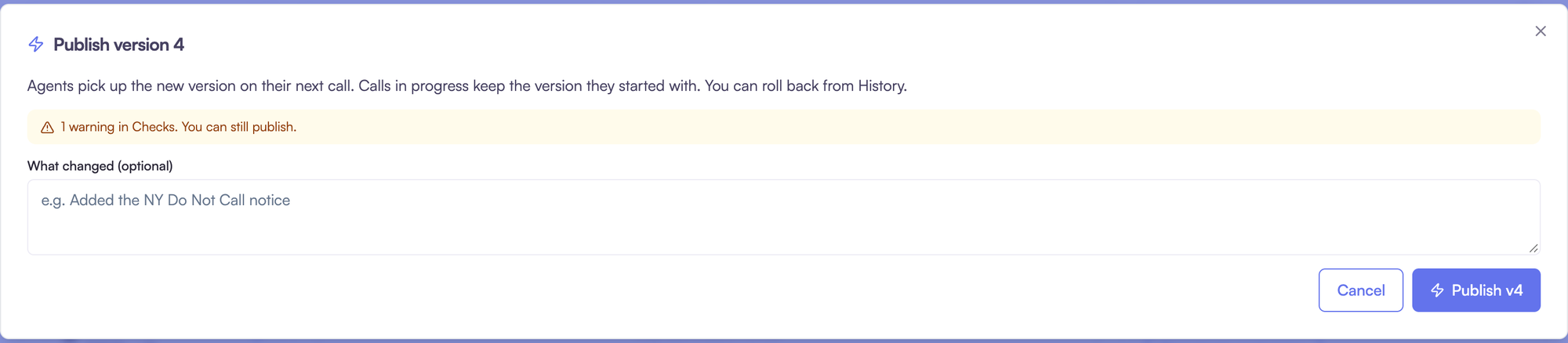
- Agents get the new version on their next call.
- Calls in progress keep the version they started with. Refreshing the page mid-call doesn’t switch the version either.
History and rollback
The History tab lists every published version, newest first. Each entry shows who published it, when, its size and its note. The newest is marked live.
Click Restore on any version to copy it into your draft. Nothing changes on calls until you publish again.
Undo and shortcuts
Undo and redo cover up to 100 steps, including AI drafts and page deletions.
| Shortcut | Action |
|---|---|
| ⌘/Ctrl + S | Save draft (works even while typing) |
| ⌘ + Z | Undo |
| ⇧ + ⌘ + Z or ⌘ + Y | Redo |
| ⌘ + D | Duplicate the selected block |
| Delete / Backspace | Delete the selected block |
| ↑ / ↓ | Move between blocks |
| Esc | Deselect |
Apart from Save, these shortcuts are ignored while you’re typing in a field or while a dialog is open.
Drafting with AI
Draft with AI opens Draft with Palera AI. Choose Start a new draft or Improve this script. Pick a quick start (Outreach, Fundraising, Survey, Support) or describe the call:
- What should this call accomplish? (required)
- audience, call type, what success looks like, tone, language and length
- optional sections for required questions and data, objections and outcomes, compliance and state rules, payments, and approved facts or source copy
Click Generate draft. The result includes:
- Coverage: a summary, a coverage audit across 11 areas, any builder checks to fix, assumptions, and points for human review
- Agent preview: a read-only preview of the draft
Apply to canvas replaces the canvas with the draft. You can undo this in one step, and nothing is saved or published until you do so yourself.
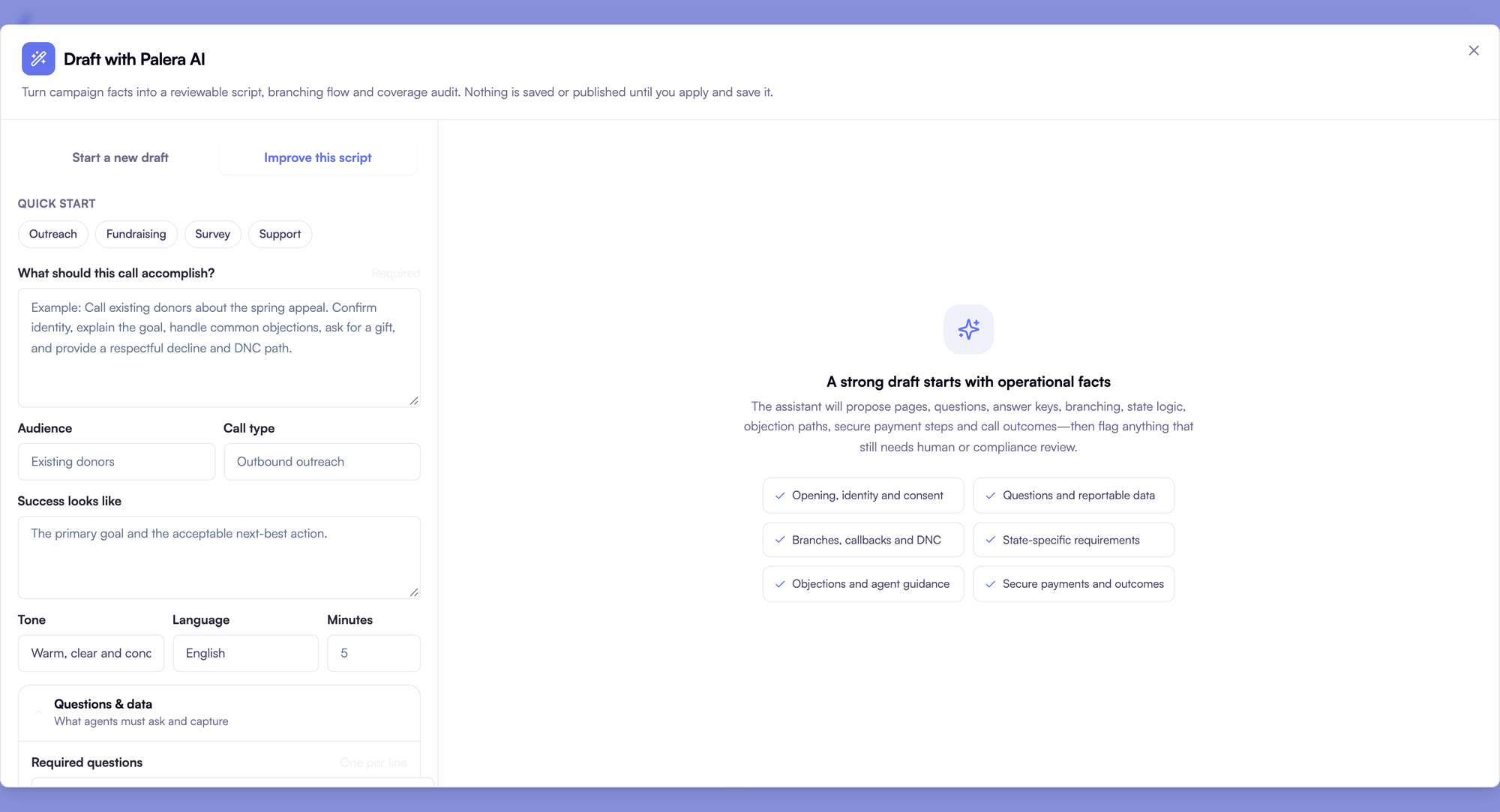
AI drafts always need human and compliance review. The assistant doesn’t invent image, link or iframe URLs. It only sets dispositions when exact disposition IDs are supplied, and otherwise flags them for you to review.
Using a script on a campaign
- Publish the script. Only published scripts can be attached to a campaign.
- In the voice campaign wizard, go to the Script step. Under Agent script, choose Built-in call script and pick the script under Call Script.
The same picker appears when you edit a voice campaign, in the workflow builder and in Duplicate workflow. Only scripts for the campaign’s client are listed.
To check what agents will see, use View script on the campaign page. It opens a read-only copy of the script.
What agents see on a call
During a call, the script appears beside the call controls. Supervisors listening in see a read-only copy.
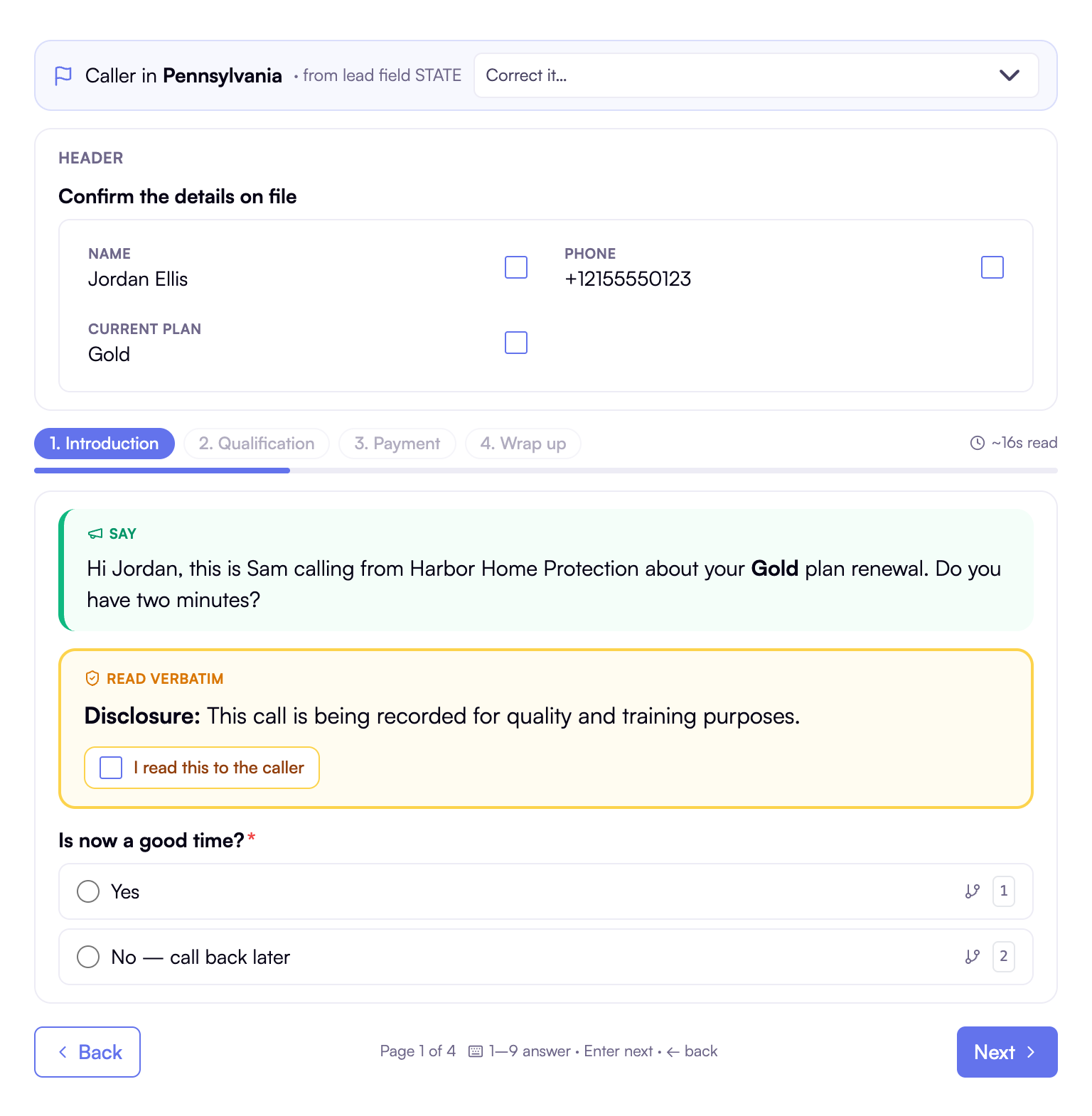
Moving through the script
- The page steps along the top show progress. Pages the agent hasn’t reached yet are grayed out.
- Next (or Finish on the last page) and Back move between pages.
- Keyboard: 1–9 answers the current Radio question, Enter or → goes to the next page, and ← goes back. The agent must click into the script first, and the keys are ignored while typing in a field.
Required steps. Next is blocked until every visible required question is answered and every must-read disclosure is ticked. Open items are outlined in red, with a count such as 2 required steps are open on this page. Finish and end-call buttons also check every page the agent has visited.
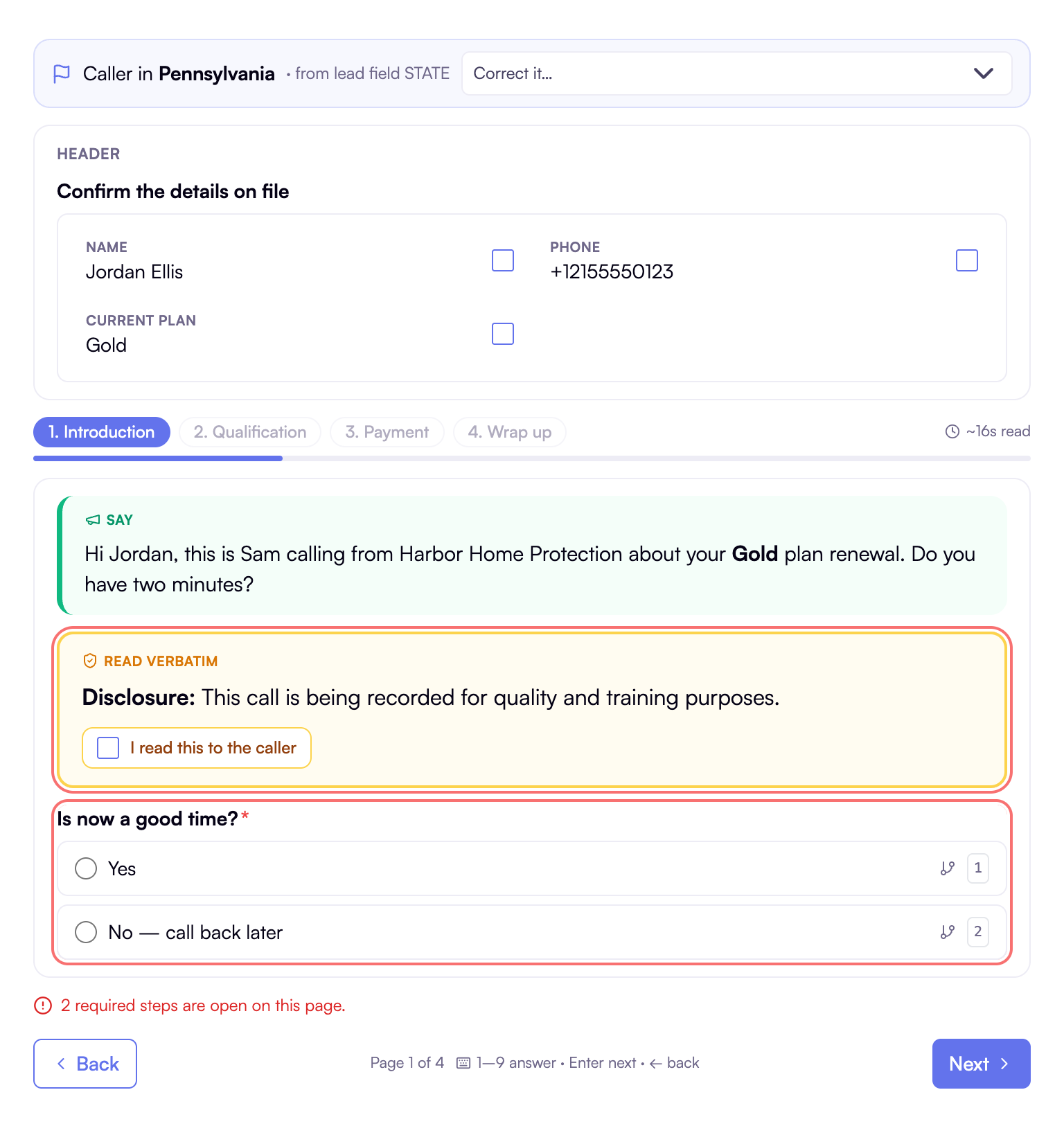
State banner. In a script that uses state logic, the banner at the top shows the caller’s state and where it came from. The agent can Correct it…, or Set the state… when it’s unknown.
Saving. Answers save automatically a moment after each change. The status line shows Saving…, Saved, or Answers could not be saved. If the agent refreshes the page mid-call, the script restores their answers and the page they were on.
Viewing responses
Click Responses in the builder toolbar to open the Response report:
- Summary tiles: Responses, Completed, In progress and Completion rate.
- Filters: status, date range (From, To) and script Version.
- Table: one row per call, showing the agent, version, status, pages visited and the answers (expand a row to see them).
- Export CSV: one column per variable. Address, payment and contact answers are split into sub-columns. Exports are capped at 50,000 rows.
Protected answers always appear masked to the last 4 characters. For payments, only the result is stored: last 4 digits, card type, expiry and confirmation code.
Limits
| Item | Limit |
|---|---|
| Image upload | PNG, JPEG, GIF or WebP, 5 MB |
| Content width | 600–1600 px |
| Iframe height | 160–1200 px |
| Data action timeout | 1–15 seconds |
| States per rule | 60 |
| State groups per script | 100 |
| Contact card fields | 50 |
| Payment amount | $0.01 – $100,000 |
| Undo history | 100 steps |
| CSV export | 50,000 rows |